2026 Product Demo Software Guide
Screen recording and video editing tools for product demos
A product demo needs screen capture, editing and a way to reach viewers. Compare which steps Click to Reel, Screen Studio, Loom and OBS Studio handle, and when you need another tool to finish the video.
Updated · By Click to Reel
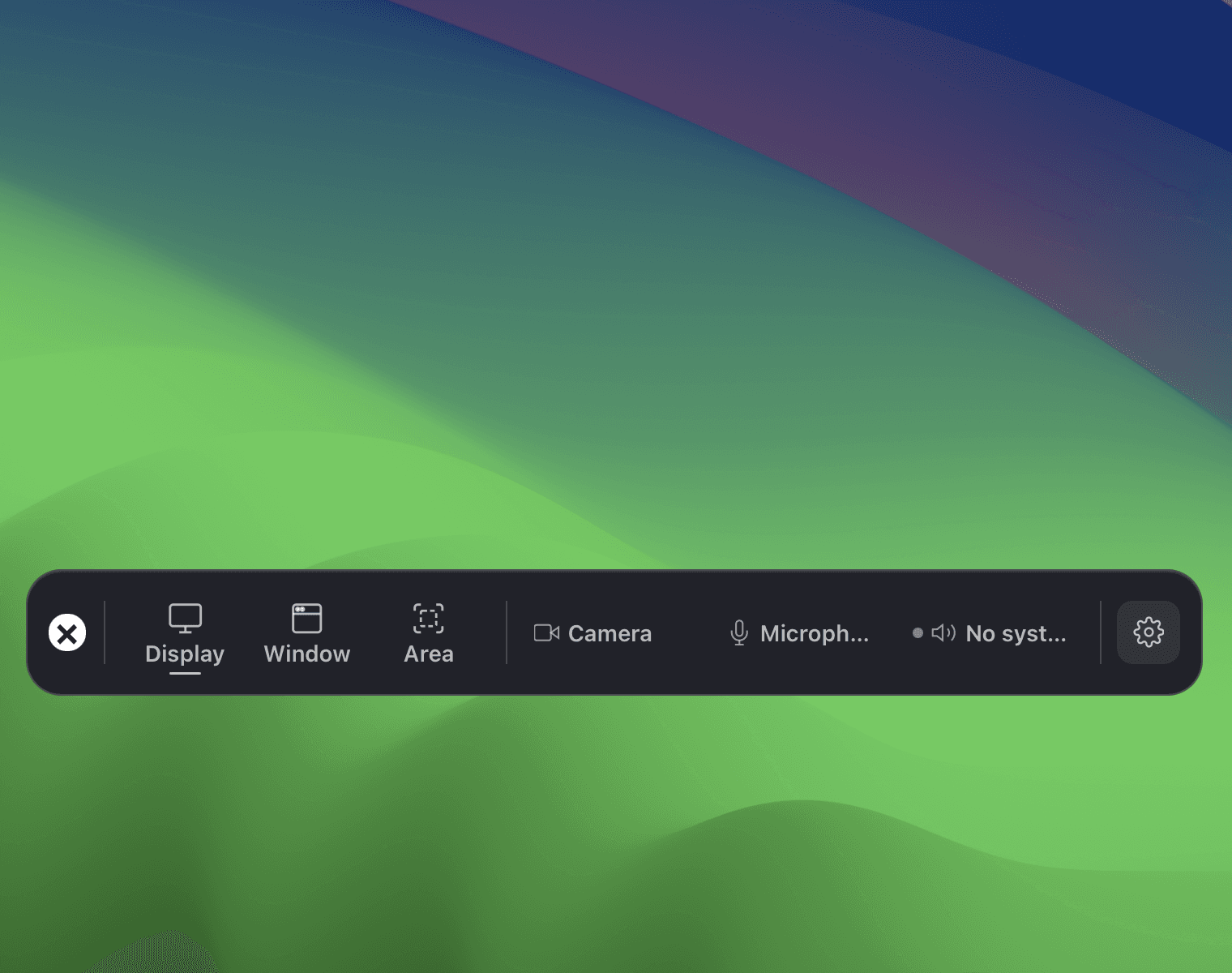
Choose the workflow before you choose the recorder
For a Windows product demo, Click to Reel combines automatic cursor zoom, timeline editing and free 1080P exports. Mac users can also consider Screen Studio. Loom suits a hosted video link with comments, while OBS Studio suits multiple capture sources and live streaming.
Record a short version of the same task before committing to a workflow. Check three things in the result:
- Readable controls: Can you follow the important clicks at the size viewers will actually watch? Automatic zoom can bring small buttons and menus into view.
- Editing steps: Can you remove pauses, trim the opening and adjust the pace in the recorder, or will you need a separate editor?
- Delivery and cost: Do you need a local video file or a hosted link? Check the free resolution, recording-length limits and any paid export requirements.
Screen recorder vs video editor: what does each do?
A screen recorder captures an action as it happens. A video editor changes the recording afterward: cutting pauses, adjusting the pace and arranging clips. A hosting service gives the finished video a shareable link. Some apps combine these jobs, so you may not need three separate tools.
For a walkthrough of one task, such as inviting a teammate, built-in trimming and zoom controls may be enough. Click to Reel combines screen capture, timeline trimming, speed adjustments and automatic zoom with local video exports. Screen Studio also combines recording and editing on Mac. Loom combines recording and hosted links, with editing features that depend on the plan. OBS focuses on recording and live production; plan a separate editor if you need to cut and arrange its recordings afterward.
Add a separate editor when you need to combine several recordings, mix in other footage or build custom graphics and audio across scenes. Check your sharing destination too: exporting a video file and publishing a hosted review link are different steps.
Watch the 32-second Click to Reel demo to see its recording and editing workflow before downloading. Exports up to 1080P are free; 4K is optional and paid.
Comparison Matrix: Core Capabilities at a Glance
Match the platform, export limits and sharing workflow to your task. Vendor pricing and trial terms can change; use the official sources linked below when checking a purchase.
| Software | Platforms | Auto Zoom | Pricing & Free Tier | Privacy & Processing |
|---|---|---|---|---|
| Click to Reel | macOS 13+ (Apple Silicon) & Windows 10/11 (x64) | Automatic cursor zoom with manual adjustments | Free 1080P · 4K from $2.99/mo, $19.99/yr, or $39.90 lifetime Unlimited recordings, timeline editing, 1080P export, no watermarks | Local video capture and export; online account and licence services |
| Screen Studio | macOS; check the current system requirements | Automatic (custom camera curves) | See official pricing and licence terms Check current trial and export terms | Mac desktop editor; check current sharing options |
| Loom | Web extension, macOS, Windows, iOS, Android | Screen and camera messaging with canvas controls | Free Starter; paid plans priced per user Up to 25 videos, maximum 5 minutes per recording, 720P resolution | Cloud-first (encodes and uploads directly to Loom servers) |
| OBS Studio | macOS, Windows, Linux | Manual (requires third-party Python/Lua scripts or OBS plugins) | 100% Free and open source (GPLv2) Completely free with no restrictions or paywalls | Local recording files or configured live streaming |
Individual Tool Deep Dives, Pros & Cons
Click to Reel
Modern GPU-accelerated desktop recorder with automatic zoom for product walkthroughs and demos.
- Camera / Zoom
- Automatic cursor zoom with manual adjustments
- Free Export Tier
- Unlimited recordings, timeline editing, 1080P export, no watermarks
- Privacy / Processing
- Local video capture and export; online account and licence services
Pros
- ✓Native cross-platform support for both Windows 10/11 and macOS Apple Silicon
- ✓Automatic cursor tracking and smooth zoom interpolation without manual keyframing
- ✓Generous free tier: full editing and up to 1080P export with zero watermarks
- ✓Recording files stay on your device for local editing and export
- ✓High-performance GPU compositing with real-time preview, rounded corners, and shadows
Cons
- ✕Does not provide cloud hosting or instant shareable link generation (files export locally)
- ✕Not designed for live broadcasting or multi-camera studio switching
Verdict: A practical choice for Windows and Mac product demos when you want automatic zoom, timeline editing and free 1080P exports in one app.
Screen Studio
Mac-first screen recording software known for polished automatic camera movement.
- Camera / Zoom
- Automatic (custom camera curves)
- Free Export Tier
- Check current trial and export terms
- Privacy / Processing
- Mac desktop editor; check current sharing options
Pros
- ✓Automatic zoom and camera movement for screen demos
- ✓Elegant, opinionated user interface with preset backgrounds and aspect ratios
- ✓Recording and editing in a Mac-focused workflow
Cons
- ✕Windows users need a different recorder
- ✕Check the current licence and export terms before choosing it for a free workflow
Verdict: A Mac option for automatic camera movement, framing and recording in a single editor.
Loom
Cloud-based asynchronous video messaging tool built for distributed workplace communication.
- Camera / Zoom
- Screen and camera messaging with canvas controls
- Free Export Tier
- Up to 25 videos, maximum 5 minutes per recording, 720P resolution
- Privacy / Processing
- Cloud-first (encodes and uploads directly to Loom servers)
Pros
- ✓Instant shareable links ready seconds after stopping the recording
- ✓Rich asynchronous engagement features: viewer analytics, comments, and emoji reactions
- ✓Paid plans include trimming, stitching and video downloads
Cons
- ✕Hosted sharing needs an internet connection
- ✕Editing and higher-resolution recording depend on the plan
- ✕Restrictive free plan capped at 5 minutes and 720P
Verdict: Useful for support replies and team updates when you want a hosted link, comments and viewer feedback.
OBS Studio
Open-source power tool for live streaming, multi-track recording, and custom broadcast layouts.
- Camera / Zoom
- Manual (requires third-party Python/Lua scripts or OBS plugins)
- Free Export Tier
- Completely free with no restrictions or paywalls
- Privacy / Processing
- Local recording files or configured live streaming
Pros
- ✓Unlimited flexibility: infinite scene switching, audio routing, and VST audio filters
- ✓Zero cost, zero watermarks, and an active open-source developer ecosystem
- ✓Direct integration with streaming platforms (YouTube Live, Twitch, Kick)
Cons
- ✕Scene and encoder setup adds steps for a simple product walkthrough
- ✕No built-in post-production editor: cannot easily trim clips or adjust camera zooms post-capture
- ✕Use a separate editor for post-recording trimming and demo styling
Verdict: A free option for multi-source recording and live production, with a separate editing step for finished demos.
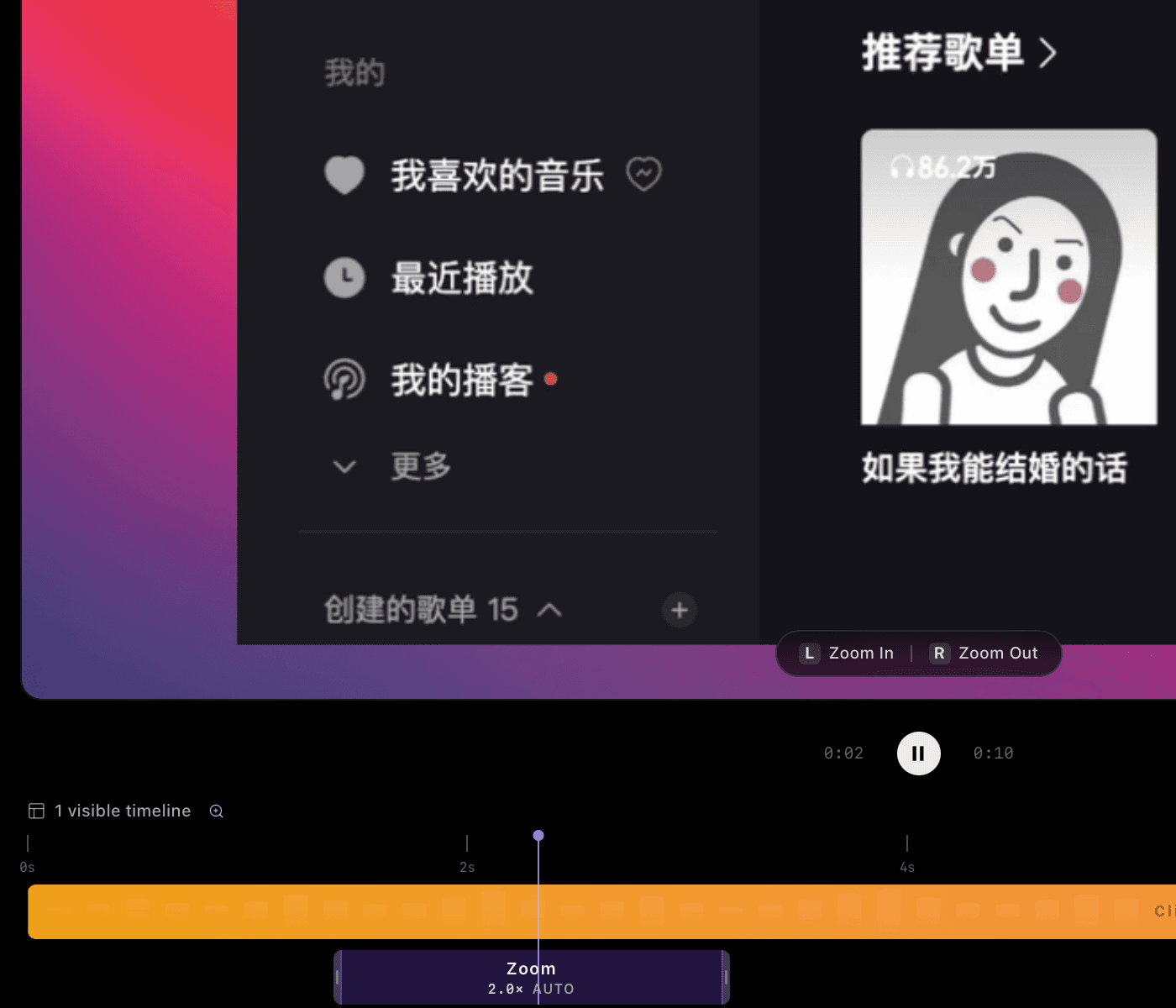
Local exports and hosted links
One of the most overlooked distinctions between desktop recorders (Click to Reel, Screen Studio) and cloud utilities (Loom) is how video pixels are processed.
A local export gives you a video file to upload to your website, a launch page or a social post. A hosted recorder gives you a link and can collect comments and viewer feedback. Both workflows can produce useful demos; compare a sample at the resolution included in the plan you intend to use.
Click to Reel captures, edits and exports recording files on your device. Google sign-in, payments and 4K licence checks use online services. Website visit and download statistics are separate from your recording files. Read the privacy policy for details.
Which Screen Recorder Should You Choose for Your Workflow?
Different tasks require fundamentally different recording philosophies. Here is our practical recommendation by job-to-be-done:
SaaS Homepage Demos & Product Hunt Launches
Automatic zoom can keep the controls you click visible in a short product demo. Export a video file, then upload it to your website or launch page.
Windows-Based Development & QA Teams
Click to Reel supports Windows 10/11 x64, automatic zoom and local timeline editing. Start with a free 1080P export and check whether your viewers need 4K.
Internal Team Standups & Support Replies
Loom combines screen recording, hosted links and comments. Check the recording-length and editing limits for the plan your team uses.
Multi-Camera Webinars & Live Stream Broadcasts
OBS Studio supports multiple scenes, audio mixing and live streaming. It is a useful fit when you need several capture sources in one broadcast.
Frequently Asked Questions
- Do I need a video editor as well as a screen recorder?
- For a short software walkthrough, a recorder with built-in trimming, speed adjustments and zoom controls may be enough. Use a separate editor when you need to combine several recordings, add footage from other sources, or build custom audio and graphics across scenes. Decide how you will share the finished video before choosing tools.
- What is the best Screen Studio alternative for Windows in 2026?
- Click to Reel is an option for Windows 10/11 x64, with automatic cursor zoom, timeline trimming and free 1080P exports. Screen Studio is designed for Mac. Compare the editing controls and export requirements that matter for your demo.
- How does Click to Reel compare to Loom for product demos?
- Click to Reel provides local editing, automatic cursor zoom and video-file exports. Loom provides hosted links, comments and viewer insights; its paid plans also include trimming, stitching and higher-resolution recording.
- Is Click to Reel really free to use?
- Yes. Unlimited screen recording, automatic cursor zoom, timeline trimming, clip speed adjustments, and video exports up to 1080P Full HD are 100% free with no watermarks. 4K export is an optional upgrade via subscription ($2.99/mo, $19.99/yr) or lifetime purchase ($39.90).
- Why does automatic cursor zoom matter for product demos?
- Standard 4K desktop recordings shrink down on mobile screens and laptops, rendering UI buttons and menus unreadable. Automatic zoom dynamically frames important clicks, guiding the viewer’s focus without requiring hundreds of manual keyframes in Premiere or After Effects.
- Does Click to Reel upload recordings or telemetry to the cloud?
- Recording files and cursor-event data are processed locally for editing and export. Google sign-in, payment and 4K licence checks use online services. The website also collects visit and download statistics as described in its privacy policy.
Ready to create directed product demos?
Free recording, timeline editing, and export up to 1080P on macOS and Windows.
Sources reviewed October 17, 2026: Screen Studio, Loom plans and features, and OBS Studio.