Screen recording guide
Best screen recording tools for product demos in 2026
A detailed comparison of Click to Reel, Screen Studio, Loom, and OBS Studio for teams that need more than a captured screen: they need a video that explains the product clearly.
Updated July 12, 2026 · 10 min read
The best screen recorder depends on the job after recording
Most comparisons start with a feature checklist. That is useful, but it misses the question that actually determines whether the video works: what has to happen after you stop recording? A support reply, a launch demo, a sales walkthrough, and a live production can all begin with the same screen capture. They do not need the same tool.
For a quick explanation to one teammate, the best workflow may be record, share, done. For a public product demo, the recording usually needs camera movement, cleaner pacing, and a frame that does not look like a raw desktop. For a live production, you may need scenes, sources, audio routing, and repeatable technical control. Choosing the tool by this finish line is more useful than choosing it by the longest feature list.
What to compare before choosing a screen recording tool
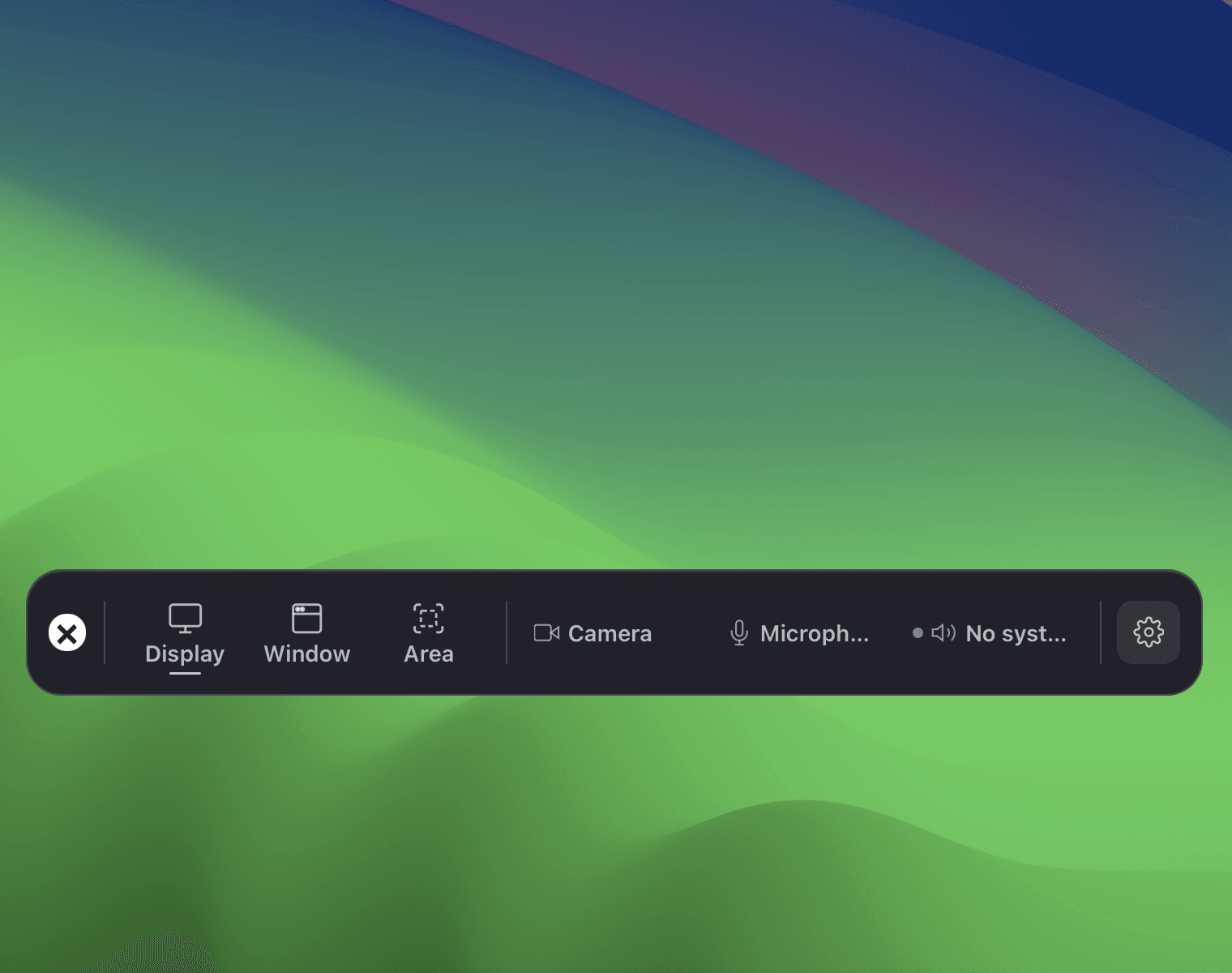
- Capture scope. Do you need a display, a single window, or a precise area?
- Camera work. Will the viewer need help following the cursor and key actions?
- Editing distance. Are you trimming one pause, or building a multi-source production?
- Performance. Does the workflow stay responsive while recording and rendering high-resolution video?
- Platform fit. Does your team work on macOS, Windows, or both?
Screen recording tools compared
The table below maps common tools to the work they are designed to optimize. It is not a ranking: each choice makes sense when its preferred workflow matches yours.
| Tool | Best for | What it optimizes | Choose it when |
|---|---|---|---|
| Click to Reel | Product demos and walkthroughs | Local recording, automatic cursor focus, light editing, GPU-accelerated export | When the final video needs to feel directed, not merely captured |
| Screen Studio | Mac-first polished captures | Smooth camera movement and presentation-ready recording | When your workflow is entirely on macOS |
| Loom | Fast async communication | Quick capture and link sharing for teams | When speed of sending matters more than visual post-production |
| OBS Studio | Advanced production and live workflows | Scenes, sources, plugins, and deep configuration | When you need a production tool rather than a lightweight editor |
Click to Reel: for product demos that need a point of view
Click to Reel is built for the gap between a raw screen recording and a full video production suite. It records locally on both macOS and Windows, then uses GPU acceleration for recording and export. The important difference is not simply speed. It is that the workflow remains compact enough to use for every product update, while still giving the result deliberate pacing and focus.
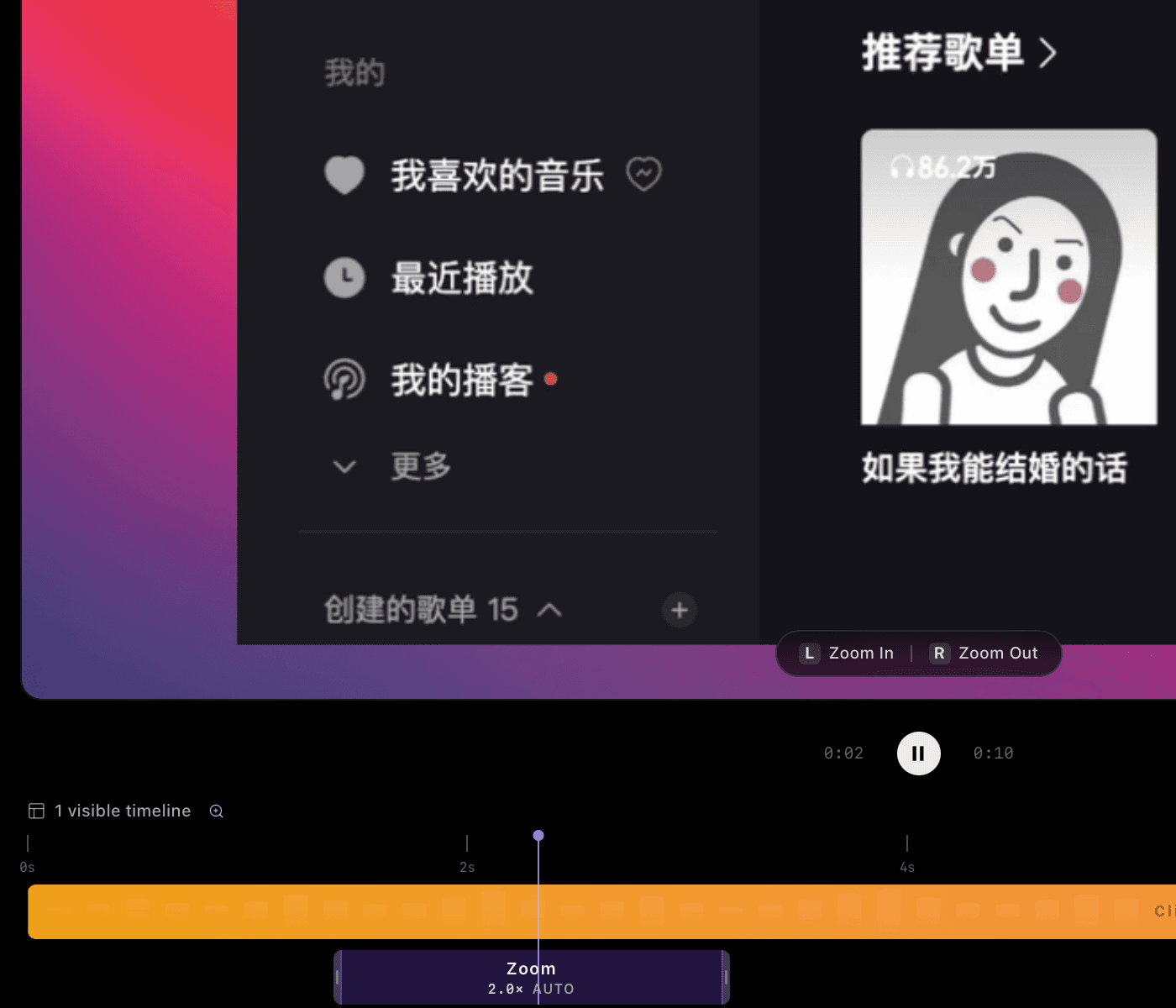
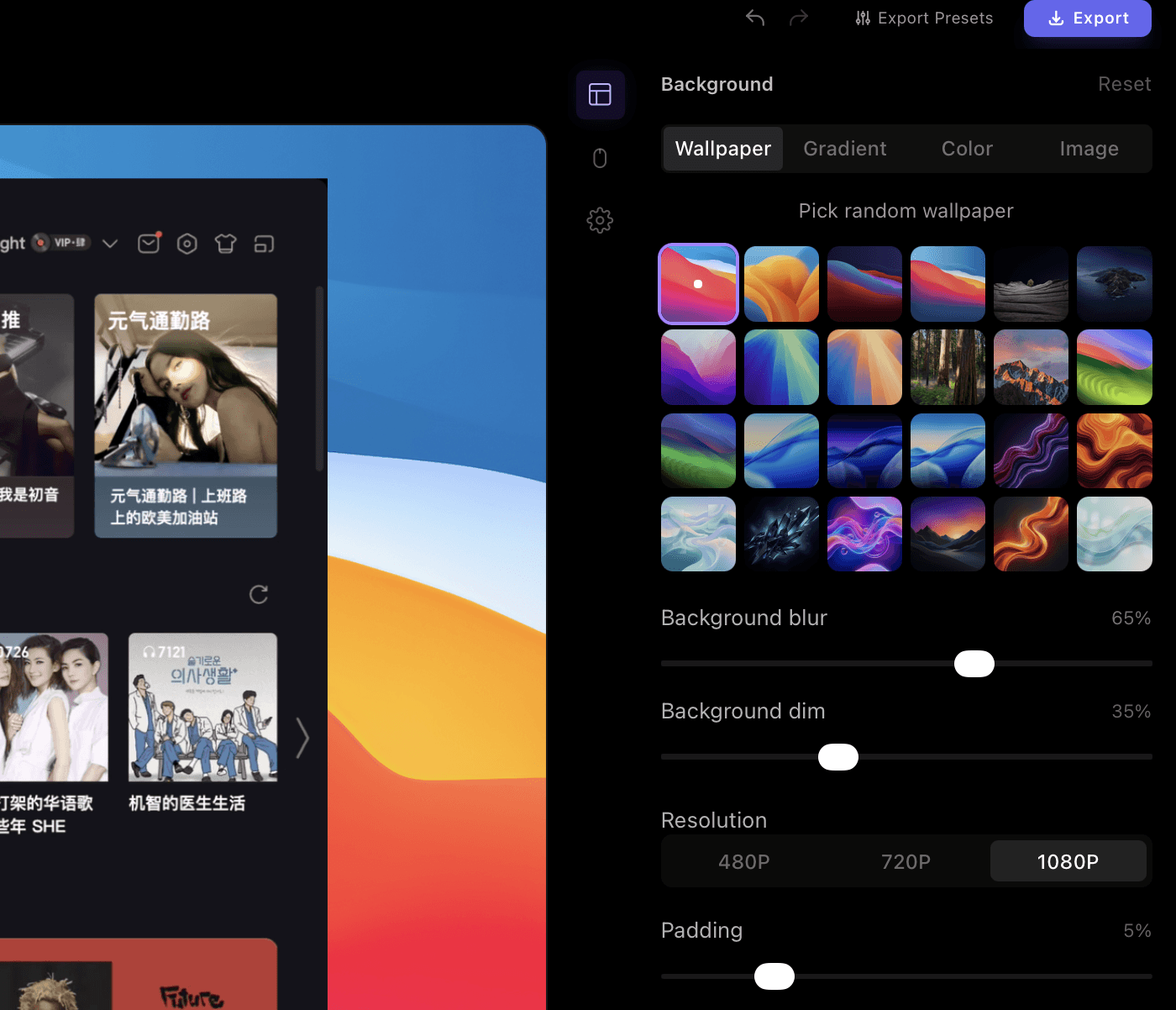
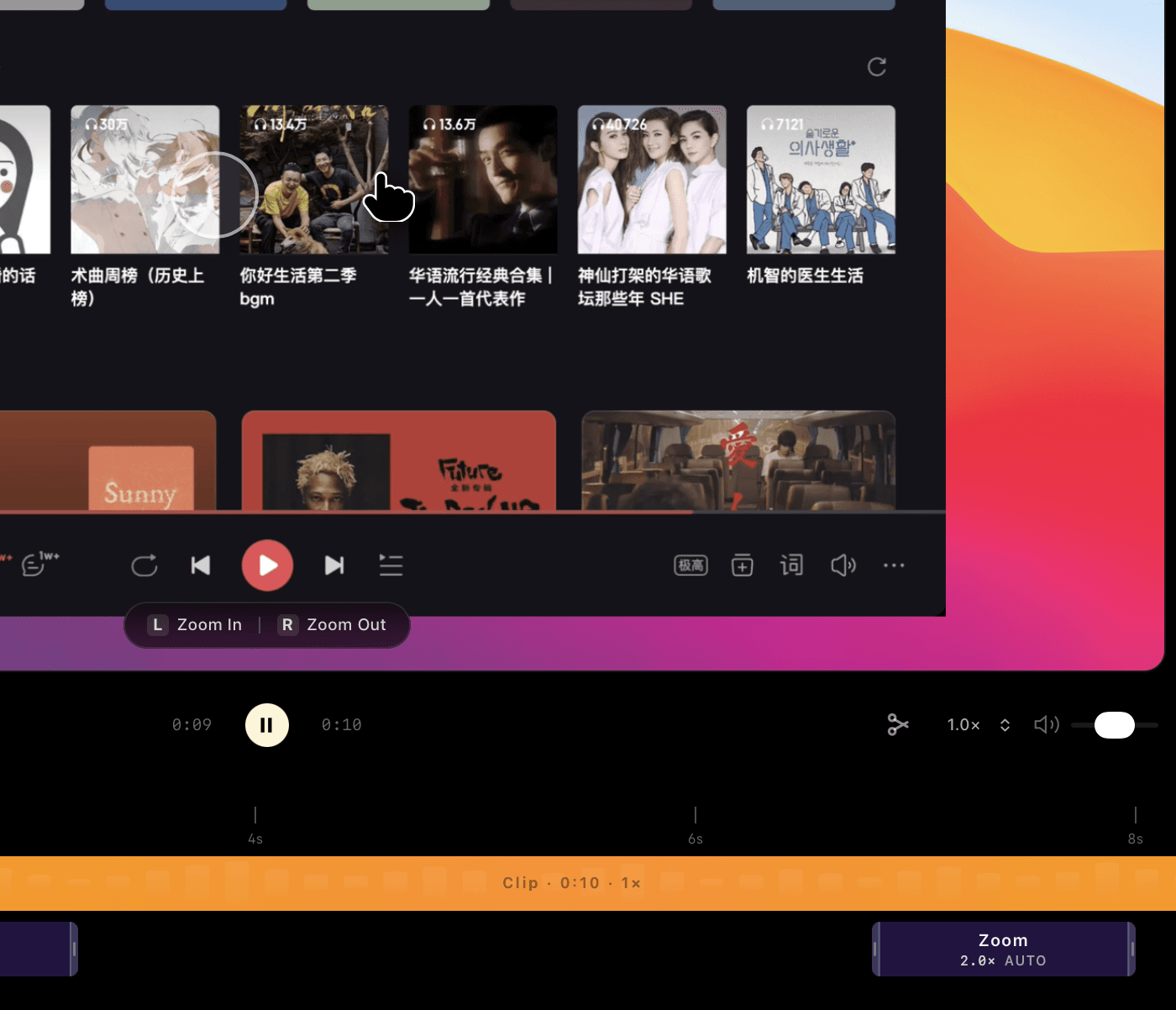
Its automatic cursor focus helps the viewer understand where an action happened. The light editor lets you split a timeline, remove dead time, change the speed of a clip, and frame the result with a background. That makes Click to Reel a strong fit for feature launches, release notes, onboarding videos, and sales demos where the recording itself is part of the product story.
Where Screen Studio, Loom, and OBS Studio are stronger
Screen Studio is the natural reference for a polished, Mac-first screen-recording workflow. If your team is entirely on macOS and camera motion is your central requirement, it is a focused option to evaluate.
Loom is optimized for speed of communication. It is compelling when a recording is primarily a message: capture it, share a link, and move the conversation forward. That is a different goal from producing a reusable product video.
OBS Studio is a flexible production environment. It shines when you need multiple scenes, sources, plugins, or a workflow that may become a live stream. That flexibility also means more configuration than many product-demo workflows need.
A practical decision checklist
Choose Click to Reel if you want a cross-platform, GPU-accelerated screen recorder that turns a local recording into a clean product demo without opening a heavyweight editor. Choose Screen Studio if your workflow is Mac-only and you are evaluating polished screen capture tools. Choose Loom when the point is rapid, asynchronous communication. Choose OBS Studio when the project requires production-level routing and scene control.
The best screen recording software is the one that removes the most work between the action on screen and the video your audience needs to see.
Product features and availability can change. Check each product’s official website for the latest platform support, pricing, and release details.